

How to record calls in HubSpot and fill your deals
Turning on call recording in HubSpot takes a minute. Getting what the buyer said into your deal properties is the real job. Steps for HubSpot calling, Aircall and Ringover, with Claap call data.

Updated October 29, 2026.
How to record calls in HubSpot: the short version
- HubSpot records calls placed with its own calling tool once call recording is on in Settings > Calling > Call Setup, from Sales Hub or Service Hub Starter.
- Transcripts, AI call summaries and call analysis need a Sales Hub or Service Hub Professional or Enterprise seat.
- Calls placed with Aircall, Ringover or another dialer reach HubSpot through that dialer's own HubSpot app, with a link to the recording.
- The recording, transcript and summary stay on the call record. Deal properties such as next step, objection or decision date still need someone, or a tool, to fill them.
- A conversation intelligence tool can import dialer calls, answer one question per property from the transcript and write the value into HubSpot.
Turning on call recording in HubSpot takes a minute, and on its own it leaves your deals exactly as empty as before: the job is getting what the buyer said into the deal properties your pipeline report reads.
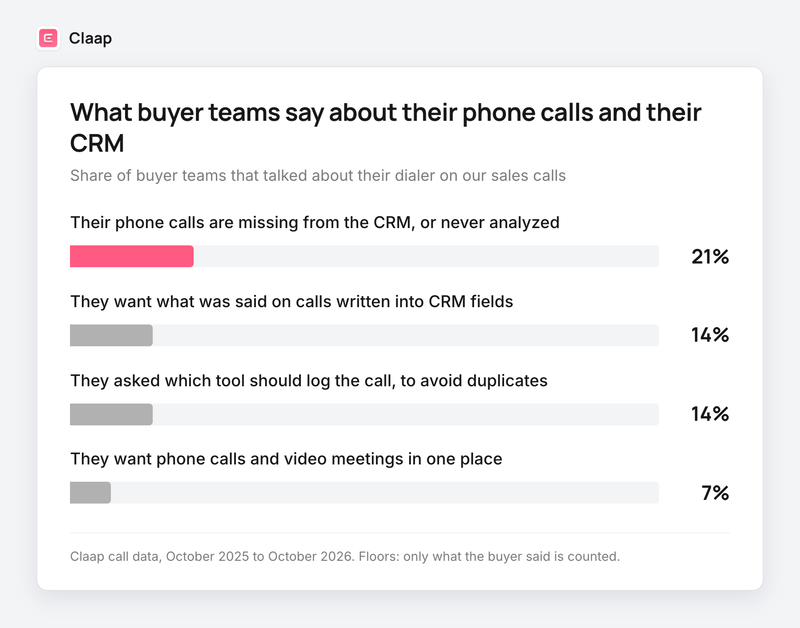
We hear it on our own sales calls. In Claap call data from October 2025 to October 2026, 21% of buyer teams that talked about their dialer said their phone calls were missing from the CRM or never analyzed.
Another 14% wanted what was said on those calls written into CRM fields (Claap call data, same period).
So this guide covers recording with HubSpot calling, then with Aircall or Ringover, then getting what was said into HubSpot properties, field by field.
What each route records, at a glance
| Route | What gets recorded | Transcript | Where it lands in HubSpot | Fills deal properties |
|---|---|---|---|---|
| HubSpot calling | Calls placed from HubSpot (browser, phone, mobile app) | Sales or Service Hub Professional or Enterprise seat | The call record, with recording, summary and transcript | No, the rep fills them |
| Aircall's HubSpot app | Calls recorded in Aircall | Logged by Aircall, per Aircall | A call activity with duration, outcome, comments and a recording link | No, the rep fills them |
| Ringover's HubSpot app | Calls made in Ringover | Ringover's own AI | Calls synced to HubSpot | AI insights, per Ringover |
| Dialer + Claap | Calls recorded by Aircall, Ringover, Allo, lemlist VoIP or Nooks | Every imported call | A call or meeting with summary, plus typed values in the properties you map | Yes, one rule per field |
Sources: HubSpot's call recording guide, Aircall's and Ringover's HubSpot integration pages, Claap's help center.
Why a recorded HubSpot call leaves your deal empty
With HubSpot calling or a dialer app, each call gets a record with its duration, its outcome, a recording link and, with the right seat, a transcript and a summary.
The deal stays as it was. The next step the buyer agreed to, the objection, the date they gave: those live in deal properties, and your pipeline report, your forecast and your workflows only read properties. A summary on the call record is text nobody filters on.
- "The thing that we have in HubSpot, we mostly have email communication and we have some of our WhatsApp communication. But yeah, we do have the black box, basically, between either demos or Aircall." (Head of sales operations, B2B marketplace)
- "The problem I've had with AirCall is that there is no way to bulk. Download transcripts, or to search them, or it's just very manual to get transcripts, um, and we don't get them really in [our CRM]." (Sales leader, AI software scale-up)
- "If the meeting happens, the tool automatically changes the outcome of the meeting to complete. If the meeting is rescheduled or is a no-show, it doesn't do it. What are we doing wrong?" (Sales leader, fast-growing B2B SaaS company, on a HubSpot outcome property)
One limit to keep in mind: these shares come from our own sales calls, with teams already looking at a recording tool, so they over-represent the problem. They are also floors, because we only count what the buyer said.
How to record calls with HubSpot calling
HubSpot calling works from Sales Hub or Service Hub Starter. Recording is on by default in new accounts, but check it, because a super admin can switch it off for the whole account (HubSpot's call settings guide).
- Set up a calling option. A HubSpot-provided number, your own registered number, or an integrated calling provider.
- Turn on recording. Settings > Calling > Call Setup > Call Configurations, then toggle Call recording on. Without it, the Record button never appears in the call window.
- Choose what gets recorded. Inbound only, outbound only, or exemptions by number, user or region.
- Turn on transcription and analysis. Same tab. It only works for users with a Sales Hub or Service Hub Professional or Enterprise seat (HubSpot's guide to call recordings and transcripts).
- Review the call. CRM > Calls, then open the call: recording, AI summary, transcript, call stats, and tracked terms on Enterprise.
The AI call summary isn't editable, and it lives on the call record, so your deal still shows what the rep typed. And HubSpot's recording links are not authenticated: anyone with the link can play the recording, so keep them inside the team (HubSpot's call recording best practices).
Consent before you record
HubSpot plays a recording consent message before inbound calls reach a rep, and lets you edit it. For outbound calls, recording starts on its own, and the rep stops it if the buyer declines. Some US states require every party's consent, and HubSpot's call recording best practices read the GDPR as generally requiring consent from all parties on EU calls. Have your legal team confirm the setup.
How to record Aircall and Ringover calls into HubSpot
Aircall and Ringover each have their own HubSpot integration, and that integration is what logs the call.
- Connect the dialer to HubSpot from the dialer's side. Aircall logs each call on the contact, company, deal or ticket with its duration, outcome, agent comments and a link to the recording (Aircall's HubSpot integration page). Ringover syncs calls, texts and emails to HubSpot (Ringover's HubSpot integration page).
- Turn on automatic recording on each number. In Aircall, Numbers > Settings > Start recording automatically, for inbound, outbound or both. A call that isn't recorded in the dialer has nothing to transcribe later.
- Check where the transcript comes from. Depending on your setup, it comes from the dialer's own AI or from HubSpot.
- "One big concern we still have, though, is kind of the um, there would be any way to analyze all of our [dialer] calls?" (Head of sales, observability software company on HubSpot)
Does Claap record calls made with HubSpot's own calling tool?
No. Claap does not record phone calls itself and does not import recordings from HubSpot calling today. Phone calls reach Claap through a dedicated integration with the dialer: Aircall, Ringover, Allo, lemlist VoIP, and Nooks in beta (Claap's help center). It's a question we hear on our own calls: "If we are using [HubSpot] Dialer, can [we] also get those?" (Sales leader, fast-growing B2B SaaS company). If your reps dial from HubSpot and you want Claap to read those calls, route them through one of those dialers.
How to get what was said into HubSpot properties
A quick note before going further: Claap is our product, and we describe it here with its limits.
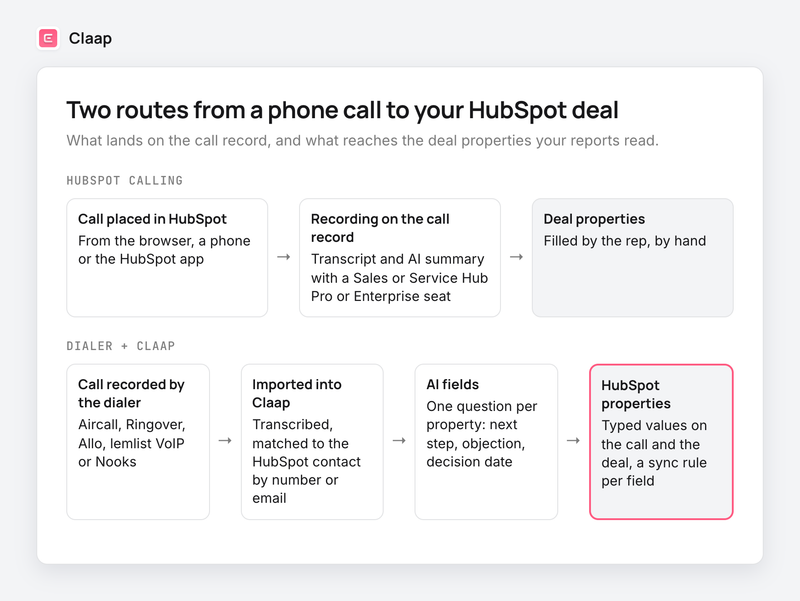
- Connect the dialer to Claap. Workspace settings, Apps & Integrations, then the Aircall or Ringover tile. Aircall needs the same login email in both tools. Ringover needs a Business or Advanced account, an API key and a webhook (Claap's Ringover setup guide).
- Set a minimum call length. Imports skip calls shorter than the threshold you pick: no minimum, 15 seconds, 30 seconds, 1 minute, 2 minutes by default, or 5 minutes (Claap's Aircall setup guide).
- Connect HubSpot. Claap matches each phone call to a HubSpot contact by phone number or email, depending on the dialer, and logs it as a HubSpot call with the summary, the participants and a link to the recording. A contact with no number on the record, or a number stored in another format, won't match (Claap's CRM sync troubleshooting).
- Write one AI field per property. A question, an output type and the HubSpot property it fills. "What did the buyer agree to as a next step?", a select with Meeting booked, Callback scheduled, Nurture, Not a fit, mapped to your Next step property.
- Pick a sync mode for each field. Only if empty for values a rep owns, such as amount. Append when possible for lists that grow, such as objections. Always overwrite for what should follow the latest call, such as the next step.
- Decide who approves. Automatic sync writes the values when the call is processed. Turn it off for the first two weeks and values wait on the call page until someone reviews and syncs them.
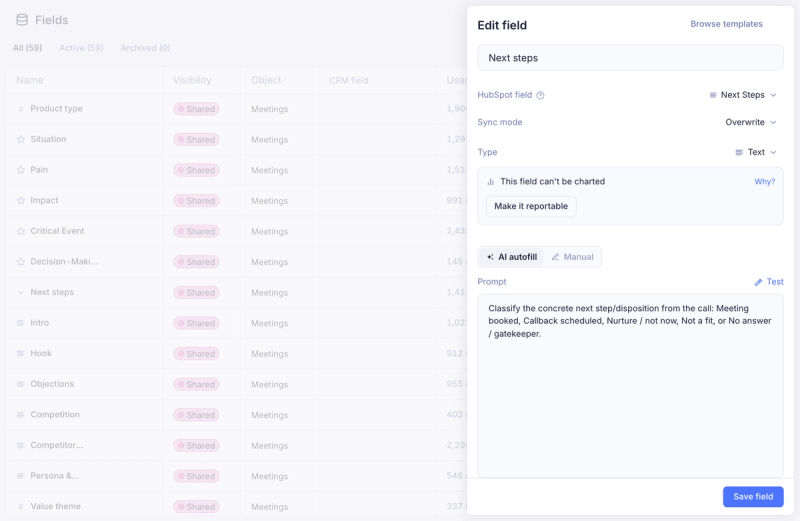
The details of field types and mapping are on our CRM auto-complete page, and the full HubSpot setup is on the HubSpot call recording page.
Decide which tool writes the call
In the same Claap call data, 14% of buyer teams asked which tool should log the call. If Aircall or Ringover already logs calls in HubSpot and Claap writes them too, each call can show up twice on the timeline. Pick one writer for the call activity, and let the other add the fields. A HubSpot admin at a construction software company put it plainly: "We chose to turn on notes because Ringover is still connected to [HubSpot] and we didn't want to log calls twice." (translated from French) In Claap, that choice is the HubSpot sync setting: add the call as a note, as a call or meeting, or both.
What about past calls?
Automatic sync runs when a call is first processed. For calls already in Claap, the sync is triggered from each call's page (Claap's guide to CRM fields). For a long backlog, you can ask Claude or ChatGPT to read the values and update HubSpot deals through the Claap MCP, which can write deal fields on HubSpot. Our HubSpot MCP guide covers that setup.
Tools that record HubSpot calls and fill properties
- HubSpot's own conversation intelligence suits teams that dial from HubSpot and have Professional or Enterprise seats. You get recordings, transcripts, summaries and tracked terms on the call record.
- Your dialer's own AI (Aircall's transcription, Ringover's AI) suits teams that want summaries next to the call in HubSpot without another tool.
- A conversation intelligence tool (Claap, Gong, Avoma, Modjo, Attention) fits teams that want calls, video meetings and deals read together, with what was said written into properties. On Claap, dialer imports start on Pro, and the HubSpot integration and CRM fields are on Business, $60 per seat per month billed yearly (Claap pricing page).
Video meetings are a different route: HubSpot's Notetaker joins Zoom, Meet and Teams as a bot. We compared it with external tools in HubSpot's meeting notetaker vs external tools.
Where to start
- Start with the dialer your reps already use, because a call the dialer doesn't record never reaches HubSpot or Claap.
- Pick three properties first, next step, main objection and decision date, because those are the ones pipeline reviews argue about.
- Use append for objections and competitors, because a list that grows tells you more than the last call alone.
- Keep automatic sync off for two weeks if your reps distrust the CRM, then turn it on field by field.
- This guide does not apply if every sales call happens on Zoom, Meet or Teams: then the route is the meeting recorder, and phone calls are a side topic.
For the wider method, field by field, see our guide to automated CRM data entry.
Frequently asked questions
How do I record each call in HubSpot?
Turn on Call recording in Settings > Calling > Call Setup > Call Configurations. Recording is account-wide, so a super admin sets it once, with exemptions by number, user or region. On outbound calls the Record button turns red while the call is recorded.
How are HubSpot calls transcribed and stored?
Calls placed by users with a Sales Hub or Service Hub Professional or Enterprise seat are transcribed automatically, with an AI summary on the call record. HubSpot calling runs on Twilio, which stores the recordings. Recording links are not authenticated, so share them only inside the team.
Is HubSpot call recording free?
HubSpot lists calling, with recording, on Sales Hub and Service Hub Starter, Professional and Enterprise. Transcripts and AI summaries need a Professional or Enterprise seat. On Claap, dialer imports start on the Pro plan, and writing calls into HubSpot properties is on Business and Enterprise.
Does Claap record calls made with HubSpot calling?
No. Claap imports phone calls from Aircall, Ringover, Allo, lemlist VoIP and Nooks (beta), and does not import recordings from HubSpot's own calling tool today. Teams that want Claap on their phone calls dial through one of those tools.
How do I get Aircall calls into HubSpot deal properties?
Aircall's HubSpot app logs the call with a recording link. To fill properties, connect Aircall to a conversation intelligence tool such as Claap, map one AI field per HubSpot property, and choose a sync mode per field.
Will my calls be logged twice in HubSpot?
They can be, if the dialer and the recording tool both write the call activity. Choose one tool to write the call and let the other add the fields.
Is it legal to record sales calls?
It depends on where you and the buyer are. Some US states require every party's consent, and EU calls need a legal basis and everyone informed. Announce the recording at the start of the call, and have your legal team check your setup.