

Pipedrive call recording: get dialer calls onto the deal
Pipedrive has no phone of its own, so the dialer decides what gets recorded. How to record Aircall and Ringover calls, log them on the person and deal, and put the next step in Pipedrive deal fields.

Updated October 29, 2026.
Pipedrive call recording overview
- Pipedrive retired its own Caller feature and has no built-in calling today: its help center sends teams to calling apps from the Pipedrive Marketplace, such as Aircall, CloudTalk, JustCall or Kixie.
- The dialer records the call, and its Pipedrive app logs the call as an activity on the person, with a link to the recording.
- Pipedrive's own AI notetaker, Nova, records Google Meet, Zoom and Microsoft Teams meetings and suggests deal field updates that a rep approves.
- Nova's documentation does not cover phone calls: a call made from a dialer only reaches Nova as an uploaded transcript.
- A conversation intelligence tool such as Claap imports dialer calls, transcribes them, and sends a note to the Pipedrive person, deal and organization.
- Writing typed values into Pipedrive deal fields from a phone call takes one extra step: a webhook into Zapier, Make or n8n.
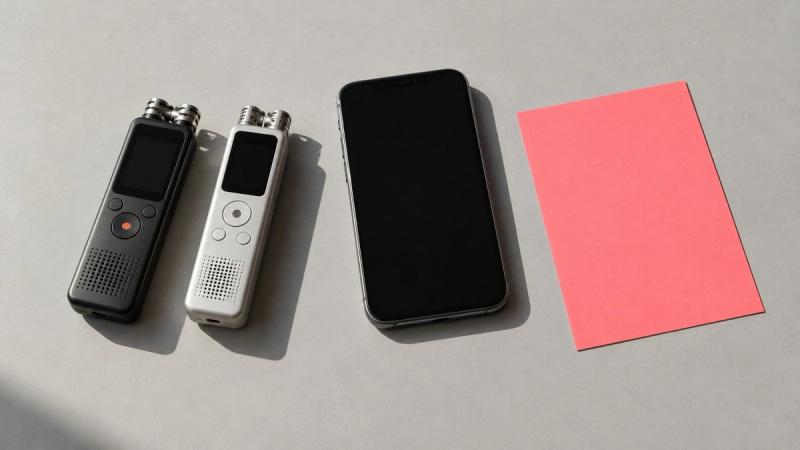
On a Pipedrive team, the call most likely to vanish from the deal is the phone call: Pipedrive retired its own caller and Nova covers video meetings, so set up the dialer recording first and the deal fields second.
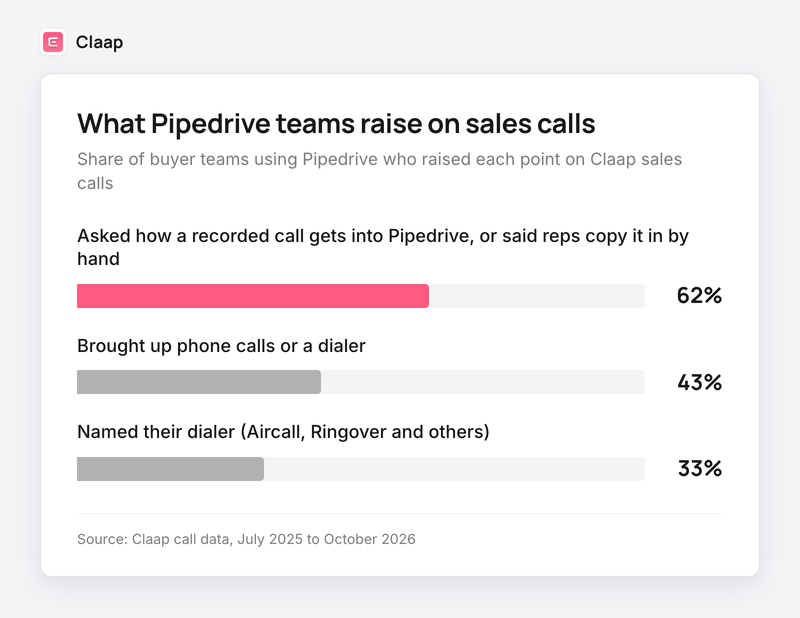
We see it on our own sales calls. Among buyer teams running Pipedrive, 62% asked how a recorded call would get into Pipedrive, or said their reps copy it in by hand (Claap call data, July 2025 to October 2026).
Sales reps spend 28% of their week selling, with most of the rest going to deal management and data entry, according to Salesforce's State of Sales research. On a small Pipedrive team, a phone call nobody wrote up is a deal with no next step.
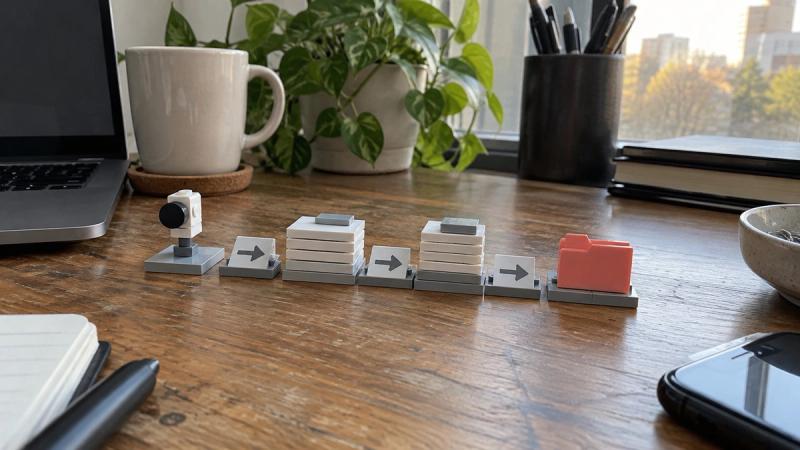
So this guide follows a phone call from the dialer to the Pipedrive deal, in four steps, then covers video meetings and the tools that do each job.
Pipedrive call recording at a glance
| What you need | Pipedrive on its own | With the dialer's Pipedrive app | With Claap on top |
|---|---|---|---|
| Place the call | No built-in calling; mobile app and web-to-mobile calling use your phone plan | Click-to-call from the person or deal | Same dialer, nothing changes for the rep |
| Record the call | Not available for phone calls | Recorded by the dialer, link logged in Pipedrive | Recording imported from Aircall, Ringover, Allo or lemlist VoIP |
| Transcript and summary | Nova, for video meetings only | Aircall: transcript and summary with Aircall AI | Transcript and summary on every imported call |
| Where the call lands | Activity logged by hand | Activity on the person, and on their open deal | Note on the person, deal and organization |
| Deal fields | Nova suggests updates on video meetings | Not filled | AI fields on every call, written to deal fields through a webhook |
Sources: Pipedrive's help center and Nova documentation for Pipedrive, Aircall's help center for Aircall, Claap's help center and pricing page for Claap.
Why phone calls slip off the Pipedrive deal
In the same Claap call data, 43% of buyer teams on Pipedrive brought up phone calls or a dialer, and 33% named the dialer they use, Aircall and Ringover first (Claap call data, July 2025 to October 2026).
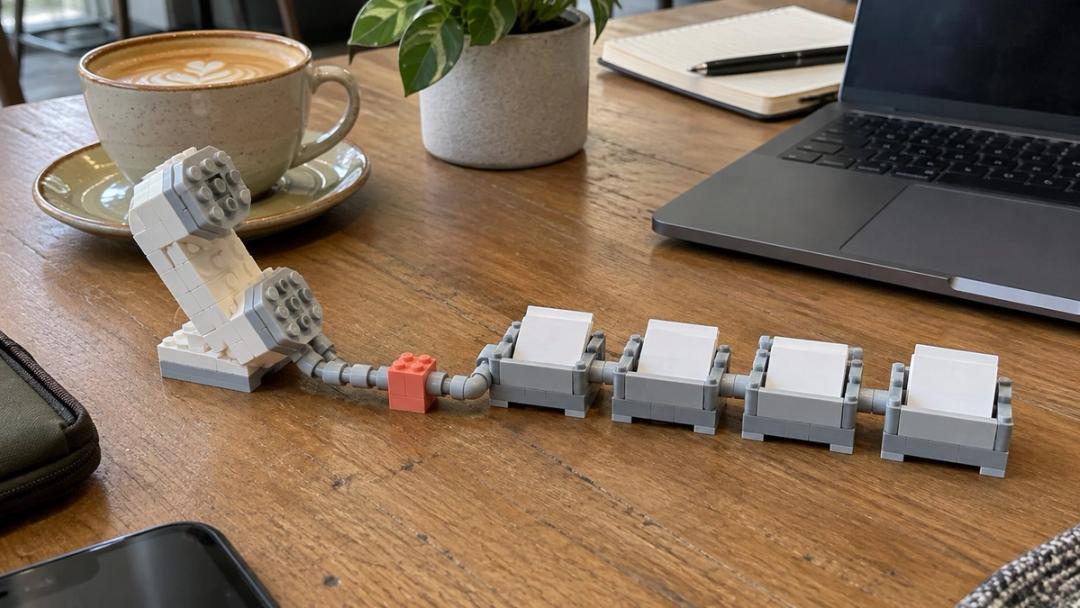
The call has to land where the deal lives. An operations lead at a small company moving its CRM to Pipedrive described the goal:
- "Capturing that, and then putting it into the record. Whether it be a lead, or I think they call it a deal, or opportunity, or whatever. It is within Pipedrive and having that auto go there."
Copying it by hand works until the calls pile up. The head of growth at a startup services company, who was also its only seller, said:
- "I timed it, I think it was like two and a half minutes to, you know, go to the [Pipedrive], open up my opportunity, create a note, go to [the recorder], go there. Copy everything, go back to Pipedrive, paste it. [...] if you're on four back-to-back calls in a row and you forget to do it."
Managers want the next action on the deal. A sales director at a small B2B software reseller said (translated from French):
- "I'm very attached, in Pipedrive, to having actions filled in for every deal or every contact."
So we judge a Pipedrive call setup on one question: after a phone call, does the deal show what happens next?
Step 1: record the call in the dialer
Pipedrive does not record phone calls, so the recording lives in the dialer. Pick the dialer first, because it decides what you can do with the call later.
- Turn on automatic recording. On Aircall, recording is set per number, for inbound and outbound calls. A call that Aircall did not record cannot be imported into a call analysis tool, according to Claap's Aircall guide.
- Check the plan. Call recording is included on every Aircall plan, from Essentials at $30 per license per month with a 3-user minimum, according to Aircall's pricing page.
- Tell the buyer. Consent rules depend on where you and the buyer are. Say at the start of the call that it is recorded, and keep the habit on every call.
Use the Pipedrive mobile app only for calls you do not need to keep: web-to-mobile calling runs on your own phone plan and logs the call as an activity, with no recording.
Step 2: log the call on the Pipedrive person and deal
The dialer's Pipedrive app does the logging. Here is what Aircall's app writes, according to Aircall's help center:
- An activity per call on the person matched by phone number, titled by direction and outcome, with date, time, duration and a link to the recording.
- The deal too: the call reaches the deal through the person, and is logged on the person's open or won deal and on their organization.
- Notes and tags typed in Aircall, and tags synced to the activity, deal or person.
- Transcript and AI summary in the activity note, for calls over a minute, when Aircall AI is on. Call summaries are on Aircall Professional at $50 per license per month, or an add-on on Essentials, according to Aircall's pricing page.
- New people: when no person matches the number, the app can create one.
Ringover's Pipedrive app logs calls, texts, voicemails, recordings and call tags on each contact's Pipedrive record.
Every call is now on the right person with its recording, while what the buyer said about budget, timing or the next meeting is still inside the audio, or inside a summary paragraph.
Step 3: turn what was said into a note on the deal
A quick note: Claap is our product. Every Claap fact below comes from Claap's own help center and product pages.
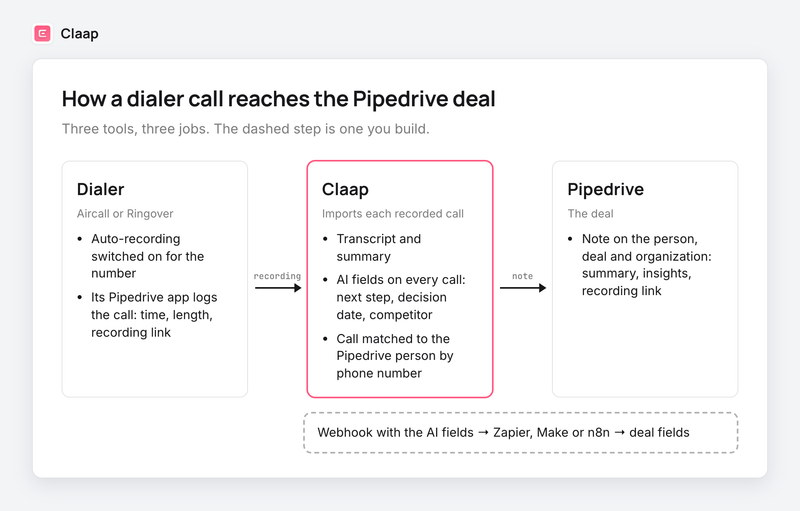
Claap imports each recorded call from Aircall, Ringover, Allo and lemlist VoIP, and picks up calls from any other dialer through audio capture.
- Short calls stay out. You set a minimum call length per dialer, from no minimum to 5 minutes (2 minutes by default), so voicemails and hang-ups never reach the deal, according to Claap's dialer page.
- The call finds its Pipedrive person. Claap searches the caller's number with Pipedrive's person search, in several formats, until one matches, according to Claap's matching rules.
- The call finds its deal. Claap picks the deal of the person's organization: one opened during the call first, then an open deal, then a deal created within 30 days, according to the same matching rules. A deal you link by hand is never replaced.
- AI fields answer your questions on every call. You write the question once ("What next step was agreed, and when?") and Claap answers it from the transcript of each call.
- A note lands on the deal. For every processed meeting, Claap creates a Pipedrive note with the date, duration, participants, the overview, the AI insights and a link to the recording, attached to the people, deals and organizations involved, according to Claap's Pipedrive guide.
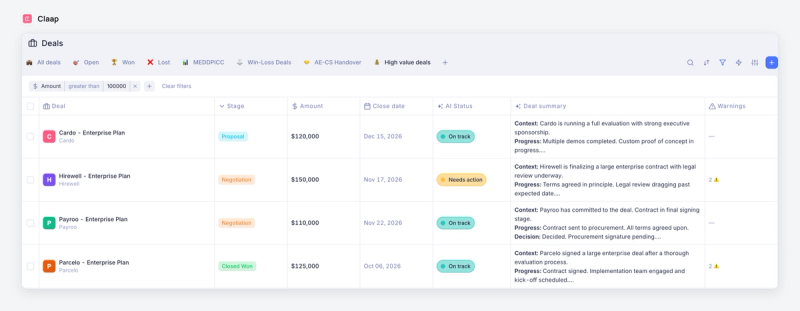
Connect Pipedrive with an admin account. Then each note is attributed to the rep who recorded the call; a non-admin connection puts every note under the person who set it up.
The Pipedrive integration and the AI fields are on Claap Business, at $60 per seat per month billed yearly, and the dialer integrations start on Pro at $32, according to Claap's pricing page.
Step 4: write the next step into Pipedrive deal fields
A note on the deal is readable. A deal field is filterable: you can sort the pipeline by next-step date or list every deal where a competitor came up.
On Pipedrive, this step needs a small automation. Claap's CRM auto-complete maps AI fields straight to CRM properties on HubSpot and Salesforce, and its help center lists those two CRMs for field mapping today. For Pipedrive, use the webhook:
- Pick three to five deal fields your pipeline review reads: next step, next step date, decision date, competitor, champion. Create them in Pipedrive as custom deal fields with the right type (date, single option, text).
- Write one AI field per deal field in Claap, with the same type: a date question returns a date, a competitor question returns one value from a list.
- Send the webhook to Zapier, Make or n8n. Claap's webhook fires when a recording is processed and carries the AI insights, the participants and the CRM deal the call is attached to.
- Update the Pipedrive deal with an "update deal" step that maps each AI field to its deal field, using the deal ID from the webhook.
- Protect what reps typed. Add a filter so the automation only writes a field that is empty, or only moves a date forward.
Test it on ten calls before you switch it on for the team. Check that each call reached the right deal, and that each field holds a value a manager would have typed.
What about video meetings? Pipedrive Nova
Pipedrive launched Nova on September 16, 2026, included in all Pipedrive plans at no extra cost, according to Pipedrive's announcement.
- What it records: Google Meet, Zoom and Microsoft Teams meetings, through a visible notetaker or a desktop app that records your computer's audio, according to Pipedrive's Nova documentation.
- What lands in Pipedrive: a meeting debrief saved as a note on the linked deal, person or organization, and suggested updates to deal, person and organization fields.
- Who decides: the rep reviews each suggested change before it is saved.
- Phone calls: the documentation does not cover them. A call recorded elsewhere can be added as an uploaded transcript file.
Pick Nova when your team sells over video and is happy to approve updates after each meeting, because it costs nothing on top of Pipedrive. Add a dialer setup like the one above when a large share of your conversations happen on the phone.
Tools for Pipedrive call recording
Most phone-heavy Pipedrive teams need the first kind of tool below, and add one of the other two.
- A dialer with a Pipedrive app, to place, record and log calls. Pipedrive's help center lists Aircall, CloudTalk, JustCall, Kixie, CallHippo, Toky and Circleloop among the most popular calling apps; Ringover has its own Pipedrive app.
- Pipedrive Nova, for video meetings, with suggested deal updates a rep approves.
- A conversation intelligence tool such as Claap, to transcribe calls from several dialers and video tools in one place, ask the same questions of every call, and send the answers to Pipedrive.
Takeaways
- Phone-heavy team: pick the dialer before anything else, because Pipedrive does not record calls and the dialer decides what you can do with the call later.
- Aircall on Pipedrive: start with Aircall's app for the log and the recording link, and turn on Aircall AI if a summary in the activity note is enough.
- Video meetings only: use Pipedrive Nova first, because it is included in your plan and suggests deal updates.
- Pipeline reviews built on deal fields: use an AI field per question and a webhook automation, because a note on the deal cannot be filtered.
- Several dialers, or calls and video mixed: use a tool that imports them all into one place, so every call is asked the same questions.
This setup is wrong if your team logs a handful of calls a week and nobody filters the pipeline on what was said. Then the dialer's Pipedrive app covers the job, and a second tool adds cost for little gain.
For the CRM itself, see our comparison of the best CRMs for tracking sales calls. For how to choose the fields each call fills, see our guide to automated CRM data entry.
Frequently asked questions
Does Pipedrive record calls?
Pipedrive has no built-in calling today, so it does not record phone calls itself. Calls are recorded by a dialer from the Pipedrive Marketplace, such as Aircall or Ringover, and the dialer's app logs the call in Pipedrive with a link to the recording.
How do I record outgoing sales calls in Pipedrive?
Connect a dialer from the Pipedrive Marketplace, set it as your default calling app, and turn on automatic recording for outbound calls in the dialer. Each call is then logged as an activity on the Pipedrive person with its recording link.
Can Pipedrive transcribe calls?
Pipedrive Nova transcribes Google Meet, Zoom and Microsoft Teams meetings. For phone calls, the transcript comes from the dialer (Aircall adds it to the activity note when Aircall AI is on) or from a tool such as Claap that imports the call.
How does the Aircall Pipedrive integration work?
Aircall's Pipedrive app logs every call as an activity on the person matched by phone number, and on their open or won deal and organization. The activity holds the time, duration, recording link, notes and tags, plus the transcript and AI summary when Aircall AI is on.
Does Claap integrate with Pipedrive?
Yes, on Claap Business. Claap sends a note for each processed call to the Pipedrive people, deals and organizations involved, with the summary, AI insights and recording link, and matches phone calls by number. Writing values into Pipedrive deal fields goes through Claap's webhook and Zapier, Make or n8n.
Is Pipedrive Nova enough for call recording?
Nova is enough for a team that sells over Google Meet, Zoom or Microsoft Teams. Its documentation does not cover phone calls, so a team that calls from a dialer needs the dialer's recording and a way to bring that call to the deal.